How to Set Up IPTV on Smart TV, Fire TV Stick & Android TV
The exact screens vary by TV brand and player app, but the setup pattern is usually the same: install a compatible player, choose the login method your provider supplied, enter the details carefully, then test playback and the TV guide before changing advanced settings.
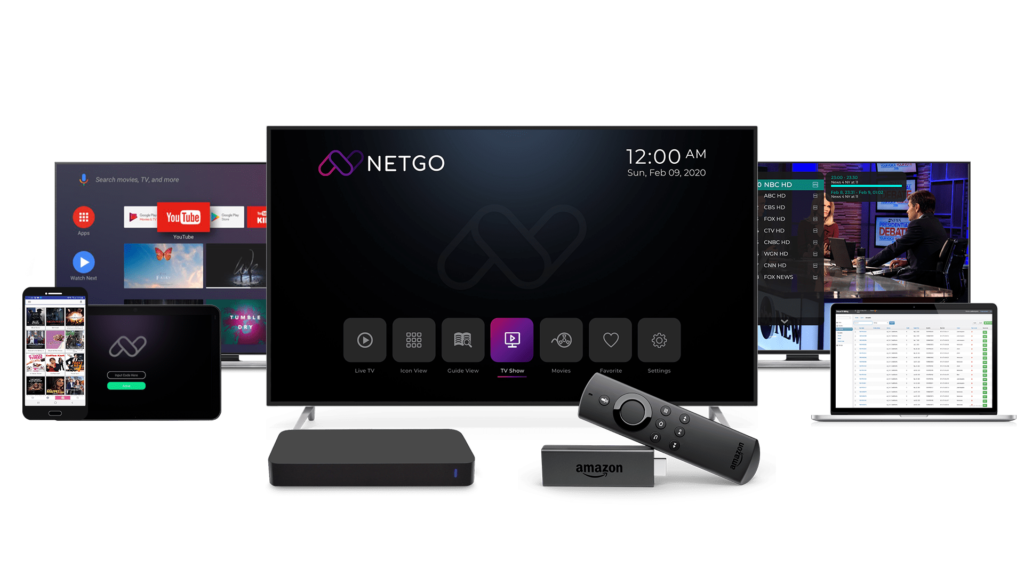
To set up IPTV, first install a compatible IPTV player on your device, then sign in using the login method you were given—commonly Xtream-style credentials or an M3U playlist URL. After the playlist loads, test a few channels, check the EPG if available, and only then troubleshoot network or app settings if something is not working.
| What you need | Why it matters |
|---|---|
| Compatible TV or streaming device | The player app must be available for your operating system and region. |
| Stable internet connection | Playback quality depends on both bandwidth and connection stability. |
| Compatible IPTV player | The player is the app that reads your login or playlist and displays channels. |
| Your login details | Use the exact server URL, username/password or M3U URL supplied for your account. |
| Correct device count | Installing an app on several devices is different from using several streams at the same time. |
What should you check before setup?
Start with the basics: identify the exact device model or operating system, confirm that it is online, and know which login format you received. This avoids the most common mistake—installing a player that does not support the credentials you have.
App availability is not identical across every TV. Samsung documents app installation through the Apps area on supported Smart TVs, while LG uses the Apps/LG Content Store flow on webOS. Android TV uses Google Play. Region, TV generation and app-store availability can change what you see.
How do you set up IPTV on a Smart TV?
On Samsung and LG televisions, begin in the television’s official app area and search for a compatible IPTV player. Do not assume that an app available on one brand or in one country will appear on every TV.
- Connect the TV to the internet and confirm normal apps can open.
- Open the TV’s app store or Apps section.
- Search for the compatible player you plan to use.
- Install and open the player.
- Choose the matching login method.
- Enter the supplied credentials exactly, including the full server URL when required.
- Wait for the channel/library data to finish loading before judging the result.
If a player is not available in the TV’s store, the cleanest alternative is often a separate supported streaming device rather than trying to force an unsupported app onto the television.
How do you set up IPTV on Fire TV or Fire TV Stick?
Fire TV supports applications designed for Amazon’s TV platform. The safest approach is to use a player available for your Fire TV generation and install it through the normal device app experience whenever possible.
After installation, open the player, select the login type, and enter the credentials you received. If playback works but the app later becomes unstable, Fire TV’s application settings let you manage installed apps, clear data or uninstall/reinstall the player.
Advanced sideloading exists on Fire TV, but it should not be the default setup path. Only use software you trust and understand; installing APK files from unknown websites adds unnecessary security risk.
How do you set up IPTV on Android TV or Google TV?
Android TV’s official flow is straightforward: open Google Play, search for the player, install it, then sign in. Google notes that apps are obtained through the Play Store on Android TV, while Google TV also lets users search and install supported apps directly from the TV interface.
- Open Apps or Google Play.
- Search for your compatible IPTV player.
- Install and launch it.
- Choose Xtream-style login or M3U according to the details you received.
- Enter the information exactly and allow the first sync to complete.
Send us the device model before you start. We can help you identify the simplest compatible setup path.
Which login method should you choose?
Use the method that matches the credentials you were given. An M3U login commonly arrives as a long playlist URL. Xtream-style access usually uses a server/portal URL plus a username and password. The player must support the same format.
Do not mix fields from two different methods. A common setup failure is pasting a full M3U URL into a field that expects only a server address, or omitting the protocol at the beginning of a server URL.
What should you check if setup fails?
Troubleshoot in a fixed order rather than changing several things at once:
- Credentials: recheck spelling, spaces and URL formatting.
- Login method: confirm the player is using the format supplied.
- Device network: verify another streaming app works normally.
- Player state: fully close and reopen it; reinstall only if needed.
- Account/device limit: check whether another device is already using the allowed connection.
- Provider/source issue: if several devices fail with the same correct credentials, contact support instead of repeatedly changing your TV.
Frequently asked questions
Do I need a special IPTV box?
No. Many Smart TVs and streaming devices can run compatible players directly. A separate box is useful when the TV’s native app store is limited or the TV is old.
Can I use the same IPTV account on several devices?
You may be able to install the player on several devices, but simultaneous playback depends on the number of connections included with your plan.
Should I use Wi-Fi or Ethernet?
Both can work. Ethernet is often easier to keep stable because it avoids wireless interference; strong modern Wi-Fi can also perform well when the device is close to the router.
Why does my playlist load but channels do not play?
That usually means the app accepted the account data but playback is failing later in the chain. Test several channels, check the network, restart the app, and contact support if the same behavior appears on more than one device.
Sources
- Google Android TV Help — download and manage apps
- Samsung Support — installing apps on Smart TV
- LG Support — installing and deleting webOS apps
- Amazon Fire TV developer overview